


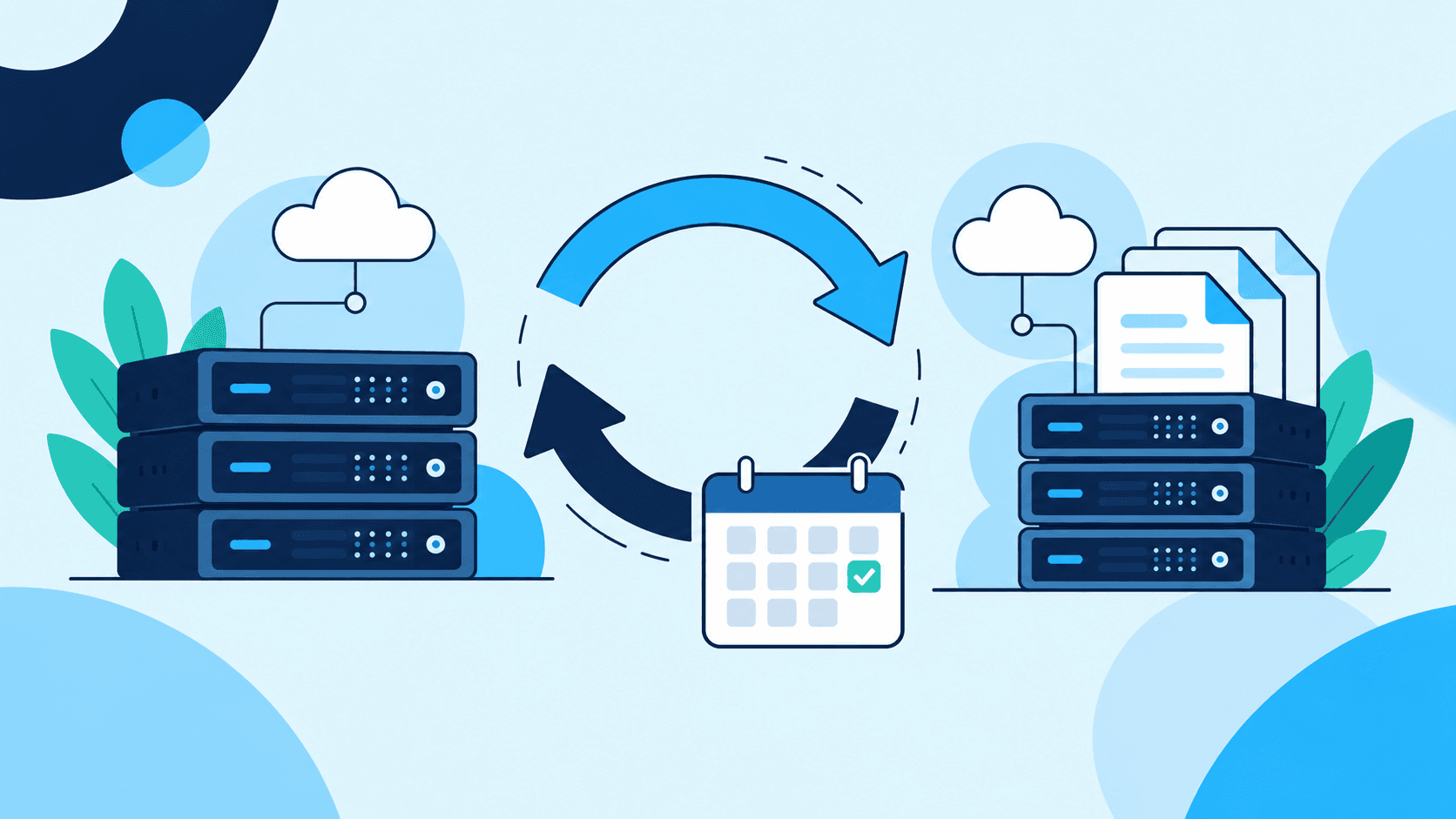
Most server disasters are not hardware failures. They happen a few minutes after someone changes something: an upgrade that does not finish, a config file that is edited wrong, a release that breaks the site. A snapshot turns that kind of mistake from a bad day into a short detour.
What a snapshot is, and what it is not
A snapshot is a saved copy of your VM's disk at one moment in time. The cloud provider takes it and stores it, in the same region as the VM.
It is not a continuous backup. Nothing is copied automatically: the snapshot holds the disk exactly as it was when you took it, and anything written afterwards is not in it. It also covers the VM's own disk only, so extra data disks are separate. Keep your own off-site copy of anything you cannot afford to lose.
When to take one
- Before upgrading the operating system or major packages.
- Before deploying a new release or changing important configuration.
- Before reinstalling the OS, which wipes the disk.
- Before a risky database migration. Stop the database service, or the VM, first, so the copy is fully consistent.
How to take one
- Open the VM and choose the Snapshots tab. The VM must be running or stopped.
- Give it a name that says why you are taking it, for example "before nginx upgrade".
- Choose Create Snapshot. It shows Pending and turns Completed on its own, usually within a few minutes. Only one snapshot of a VM can be in progress at a time.
Wait for Completed before you start your change. Only a completed snapshot can be restored, copied or used to start a new VM.
What it costs
A snapshot is a prepaid add-on charged per GB. Before you create one, the form shows the price per GB and the most it can cost, and your wallet must cover that maximum. The charge is taken when the snapshot is complete, for its real size, and it renews every 30 days. If a renewal is not paid, restoring and copying are blocked and the snapshot is deleted after a grace period. So delete snapshots you no longer need.
Using a snapshot
- Restore the same VM. Choose Restore from this snapshot and type the VM's hostname to confirm. The disk is replaced with the snapshot, so everything written since is lost. The VM keeps its order and IP address.
- Start a new VM from it. In Create New VM, pick Create from snapshot. The snapshot must be yours and on the same provider as the plan.
- Copy it to another VM on the same provider and region. OVHcloud does not support copying a snapshot, so on OVHcloud create a new VM from it instead.
A simple routine
- Snapshot before every risky change, and wait for Completed.
- Name each one after the change it protects.
- When the change has proved safe, delete the snapshot.
- Practise one restore on a VM you do not depend on, so the first time is not during an emergency.
- Keep an off-site copy of your most important data.
The full steps are in the snapshots documentation.

Written by Venesh Cloud Team